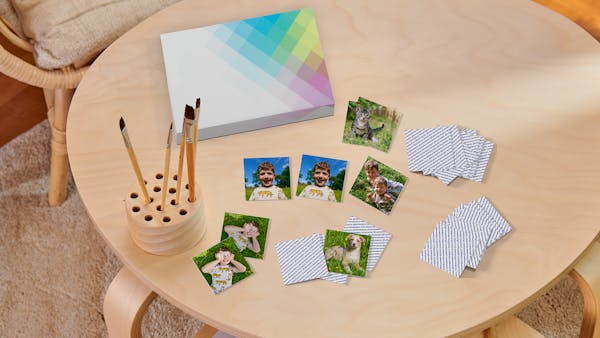
Photo memo
Memory game with 25 pairs (50 cards in total)
Size of the cards: 6×6 cm
Sturdy, FSC®-certified material
Packaging with magnetic lock
Personalise the cards with your favourite photos
from £19,99*

Memory game with 25 pairs (50 cards in total)
Size of the cards: 6×6 cm
Sturdy, FSC®-certified material
Packaging with magnetic lock
Personalise the cards with your favourite photos
from £19,99*

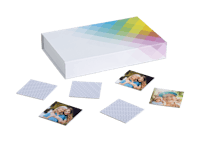
The Pixum photo memo consists of 50 sturdy photo cards that you can design yourself with your 25 favourite images. Your photos are printed on the square cards using high-quality digital printing. Thanks to the double cut of the card pairs, there is no white border around the motif. The back of your personalised memo cards is hatched with the text ‘Photo Memo’.
The game comes in high-quality designer packaging with a practical magnetic closure (dimensions: 22.5×14×3.4 cm).

This popular classic game makes a great gift, especially when you design it yourself using your own photos. Choose photos that suit the recipient or the occasion: family photos, pictures of shared experiences or things that the person likes. This gives the game emotional value and brings back shared memories.
Thanks to its simple rules, our photo memo game is ideal for children aged 3 and up. But older people who want to train their memory will also enjoy it. The photo memo game promises fun for the whole family.
You are, of course, completely free to choose your own photos. However, you may wish to consider the following points when designing your cards:
The individual memo cards are not particularly large. Therefore, choose photos that are easily recognisable even in small format: portraits, nature photographs and clear images with few details.
Adapt the images to the target audience: For children, for example, pictures of pets, family members or objects from their everyday lives are suitable. For couples, the focus can instead be on romantic pictures of their relationship.
The more similar the individual photos are, the more difficult the game becomes. If you don't want to make it too easy for the other players, choose pictures of the same person in different outfits or photos of a pet in different poses, for example.
